 ClimWeb Documentation
Two-Factor Authentication (2FA)
Setting Up Two-Factor Authentication (2FA) in Wagtail
Two-Factor Authentication (2FA) adds an extra layer of security to your Wagtail admin account. It requires both your password and a unique code generated by an authenticator app, making it harder for unauthorized users to access your account.
Step 1: Log in to the Wagtail Admin Panel
Open your web browser and navigate to your Wagtail admin login page.
Enter your username and password, then click Log in.
Step 2: Set Up an Authenticator App on your phone
To complete 2FA setup, you will need an authenticator app such as:
Google Authenticator (Android/iOS)
Authy (Android/iOS)
Microsoft Authenticator (Android/iOS)
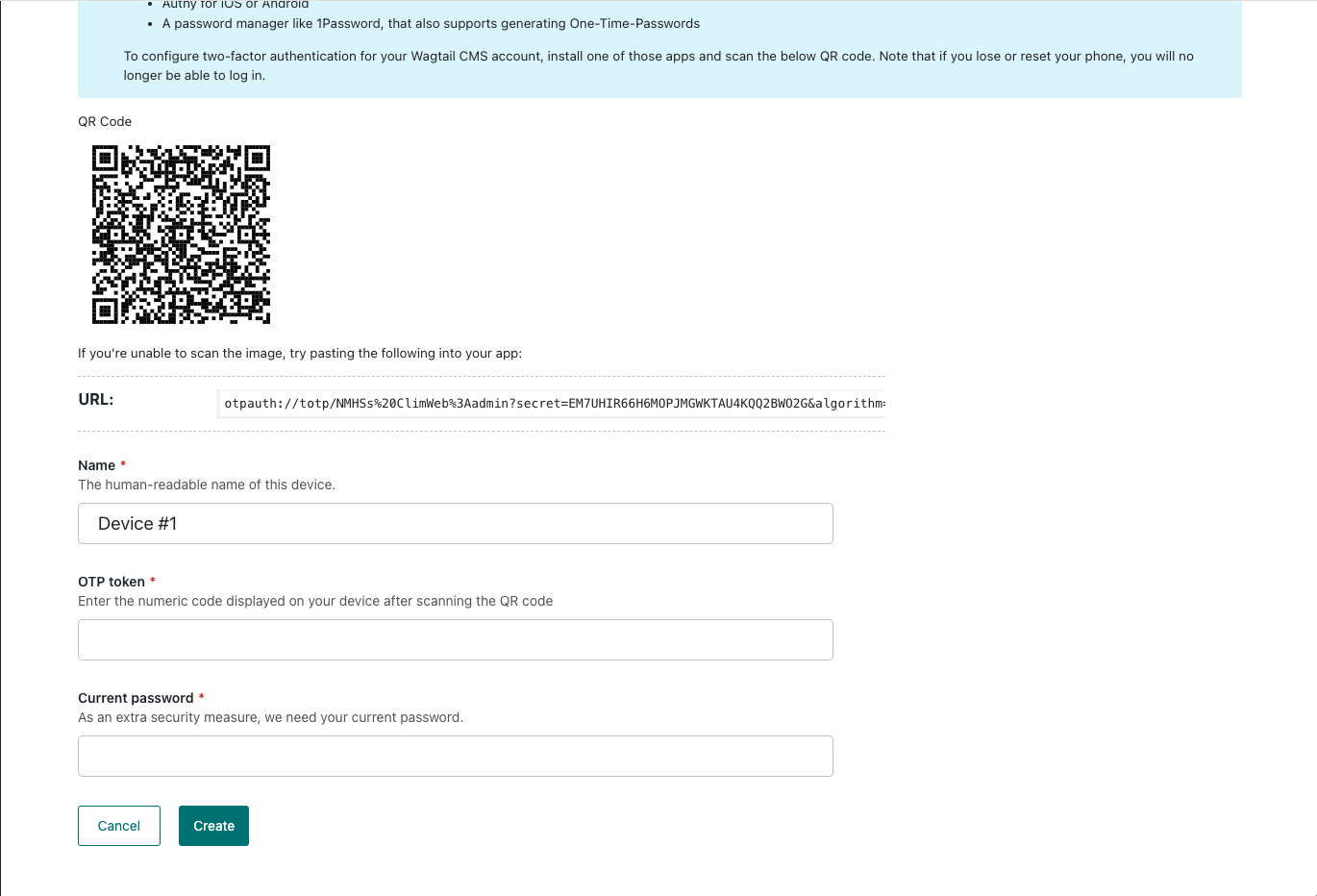
Linking Your Authenticator App
Open your preferred authenticator app.
Select the option to Add a new account.
Scan the QR code displayed on your Wagtail admin screen upon login.
If you cannot scan the QR code, manually enter the provided setup key.
Your authenticator app will generate a six-digit code.
Step 3: Verify and Complete Setup
Enter the six-digit code from your authenticator app into the Verification Code field on Wagtail.
Optionally change the device name “Device #1”
Enter your current password
Click Create and your device should be added to the list.
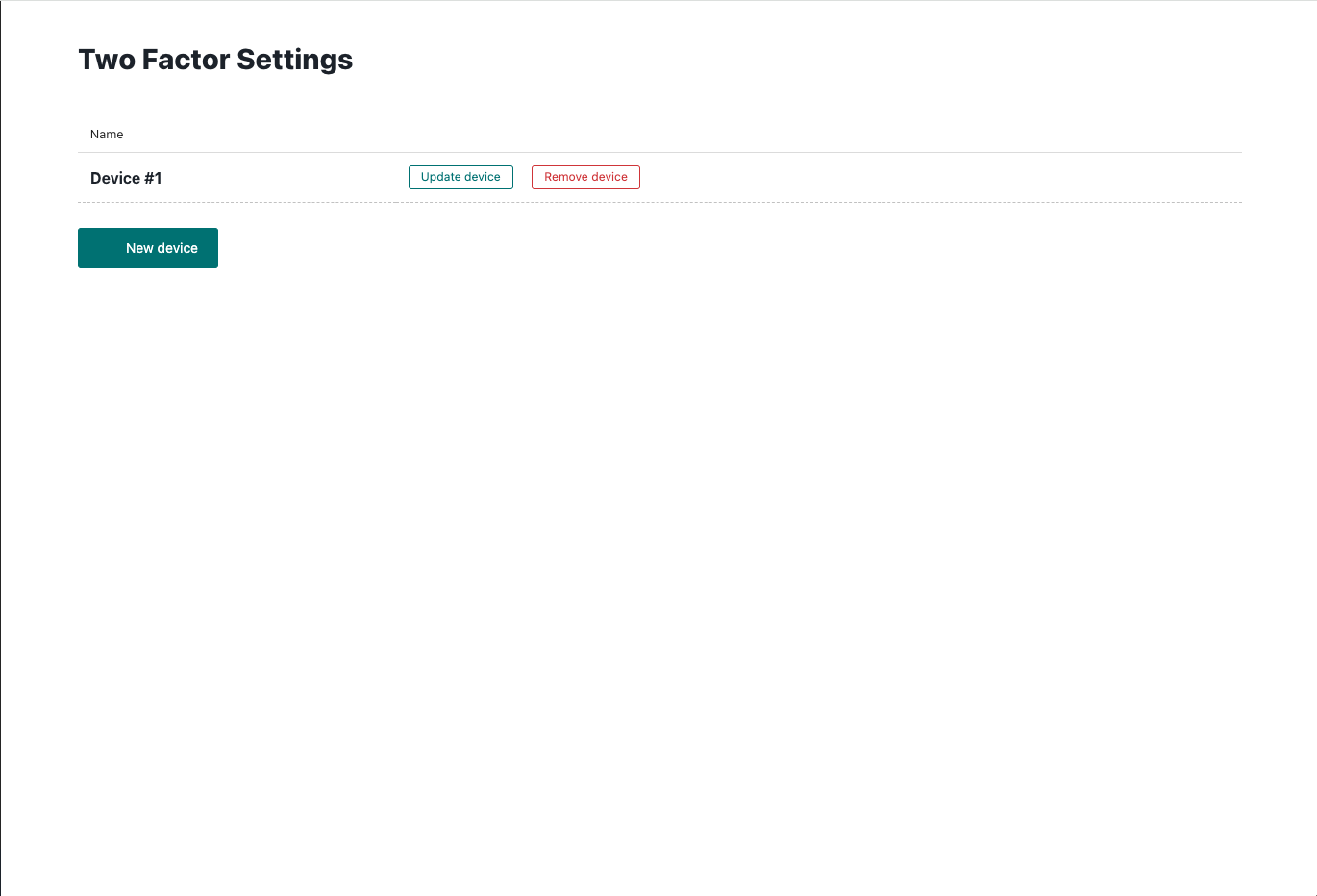
Logging in with 2FA
Next time you log in, enter your username and password as usual.
After entering your password, Wagtail will prompt you for a two-factor authentication code.
Open your authenticator app, retrieve the latest code, and enter it in the provided field.
Click Verify to complete the login process.
By enabling 2FA, you add an extra layer of security to your Wagtail admin account, protecting your data from unauthorized access.